How to turn a photo into a coloring page in Canva
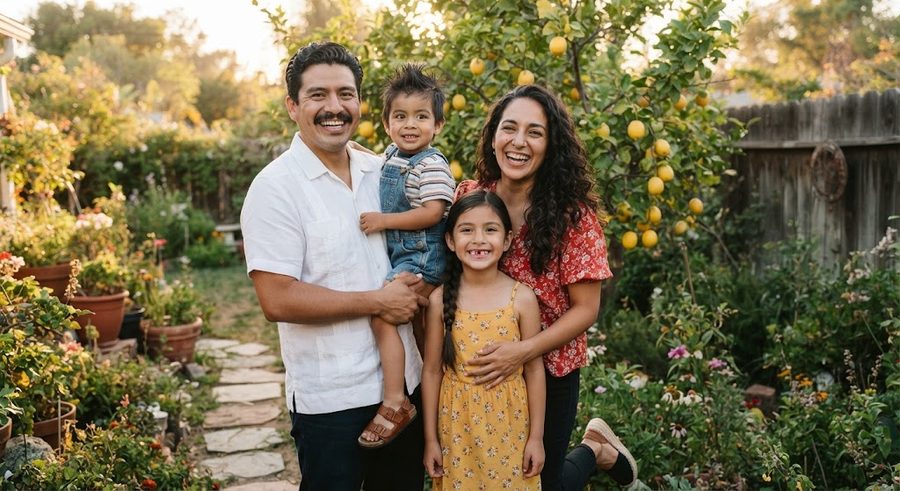
Yes, you can turn a photo into a coloring page in Canva, but the reliable way is to trace it, not to filter it. Put the photo on a US Letter page, lower its transparency so it is faint, lock it so it cannot move, then draw over the outlines with Canva's Draw tool using a thick black pen. Delete the photo, and download the page as a PDF Print file. I could not confirm a built-in Canva effect that turns a photo into clean line art, so this guide sticks to steps from Canva's own help pages.
Canva updates its editor often, so a button may have moved since those pages were written. The idea stays the same: faint photo underneath, black lines on top.
What Canva can and cannot do here
Canva's help center describes two ways to change how a photo looks, and neither is a coloring-page converter:
- Filters. Click the photo, click Edit on the floating toolbar, then under Filters click See all, choose one and drag the Intensity slider, as Canva's filters page explains. The page does not list filter names. A black and white filter, if you find one, gives a gray photo with shading, which prints as a muddy page.
- Effects. Canva's image effects page describes preset effects under Edit image, but it does not name a sketch, outline or line art effect. Canva also offers third-party apps inside the editor, and some may claim to make line art. I have not been able to confirm one from Canva's own pages, so I am not listing any.
Tracing, on the other hand, uses only tools Canva documents clearly, and it gives a better coloring page anyway, because you choose which lines matter.
Step 1: Set up the page and the photo
- Create a design at US Letter size (8.5 x 11 in) if you will print in the US, or A4 elsewhere.
- Upload your photo and drag it onto the page. Stretch it to fill most of the page, leaving a margin of about half an inch so a home printer does not clip it.
- Pick a good photo: sharp, well lit, one to three people, faces large in the frame, plain background. The free photo-to-coloring-page guide has more on choosing photos.
Step 2: Fade the photo and lock it
- Lower the transparency. Click the photo, then click Transparency on the toolbar above the editor and drag the slider, as Canva's transparency page shows. Somewhere around a third of full strength is usually faint enough to see your black lines clearly while still showing the face.
- Lock it. With the photo selected, select the More icon and then Lock. Canva's help center says a full lock stops an element being moved, resized or edited, which is exactly what you want while drawing on top of it.
Step 3: Trace with the Draw tool
Canva's Draw help page gives the controls:
- In the editor side panel, select the Draw tab.
- Choose Pen (or Marker for a softer line).
- Set the color to black with the Color tile.
- Open Drawing settings and set a thick line. For toddlers, go thicker than feels right, since thin lines disappear under crayon.
- Click and drag to trace. Use the Eraser for mistakes, then click the cursor to leave eraser mode.
What to trace, in order:
- The outline of the head and hair (outline dark hair, do not fill it).
- Eyes, eyebrows, nose and the smile. Keep these simple.
- The body and clothing outlines, plus one big detail like a pocket or a stripe.
- One or two background shapes, like a tree or a window. Skip the rest.
Two quirks the help page mentions. Canva's shape assist turns a stroke into a neat shape if you pause at the end of it for about a second, which is handy for a sun or a heart but can surprise you mid-face, so keep moving through curves. Holding Shift draws a straight line. The page also says drawings stop saving past a stroke limit of 1 MB per design, so if you are tracing many pages, split them across a few designs.
Step 4: Remove the photo
Once the lines are done, the photo has to go, or it will print as a gray ghost behind your lines.
- Open the layers panel: click the page, click Position on the toolbar, then the Layers tab, as Canva's layers page describes. Select the photo there, which is easier than clicking it under your drawing.
- Click the padlock icon on the floating toolbar to release the lock, then delete it.
Look at the page with the photo gone. Close any gaps in outlines so small hands have clear shapes to fill.
Step 5: Download and print
Canva's personal printer page recommends downloading a PDF Print file: select Share, then Download, choose PDF Print in the file type list, and select Download. The same page suggests printing at 100% scale or Actual Size, and checking that your printer supports the paper size. Leave crop marks and bleed off for a home printer.
Then print in black only, one-sided. The printing guide covers the settings that keep lines black.
Making a personalized coloring book in Canva
The same steps scale to a whole book:
- Add one page per photo in the same design.
- Make a cover: the child's name in big outlined letters and one traced picture.
- Add a short line of text on each page if you like ("Grandpa reads at bedtime").
- Download all pages together as one PDF Print file.
From there, the guide to printing and binding a coloring book at home covers booklets, staples and ring binding, and the guide to making a coloring book from photos covers picking photos that tell a story.
If tracing a dozen pages is more evening than you have, Colorkin makes coloring storybooks from family photos: pages are drafted with AI illustration tools and every one is checked and finished by a person. The tracing method itself only uses your own photo and Canva's standard editor tools; just avoid adding elements marked as premium if you want to download without paying. More guides are under make your own.
Questions parents ask
Can you turn a photo into a coloring page in Canva?
Yes, by tracing. Put the photo on the page, lower its transparency, lock it, and draw the outlines over it with Canva's Draw tool. Then delete the photo and download a PDF Print file. We could not confirm a built-in effect that converts a photo to clean line art.
Does Canva have a filter that makes a photo into line art?
Canva's help pages describe filters and preset effects, but they do not name a line art or coloring page effect, so we cannot promise one exists in your version. A black and white filter gives a gray photo, which prints poorly as a coloring page.
Can I make a whole personalized coloring book in Canva?
Yes. Make a multi-page design at US Letter size, trace one photo per page, add a cover with your child's name, and download all pages as one PDF Print file to print at home or upload to a print-on-demand service.
Can I trace in Canva on a phone?
Canva's help pages list Draw for mobile as well as desktop. A finger works, but a stylus and a tablet make tracing much easier.
See your own family on a page, free
Rather skip the tracing? Send one photo and we will email you a free sample coloring page of your child, checked by a person. No card needed.
Get a free sample page- Canva Help Center: Adjust element transparency
- Canva Help Center: Drawing lines, shapes, diagrams, and more in Canva
- Canva Help Center: Finding and arranging layers in your design
- Canva Help Center: Apply or remove filters from photos or videos
- Canva Help Center: Applying image effects
- Canva Help Center: Print designs using personal printer
More in Make your own
Turn your child's drawing into a coloring page or a book
Turn a child's drawing into a coloring page: scan it, push it to pure black and white with Threshold, thicken lines, then print or bind a book.

Turn a photo into a coloring page for free: 4 methods that work
Four free ways to turn a photo into a coloring page: GIMP filters, the Photopea browser editor, tracing on a tablet or window, and a free drawing app.
How to write a short story starring your child
A simple 12-page template for writing a picture-book story with your child as the hero, plus tips on plot, length, pictures and reading it together.