Turn a photo into a coloring page for free: 4 methods that work
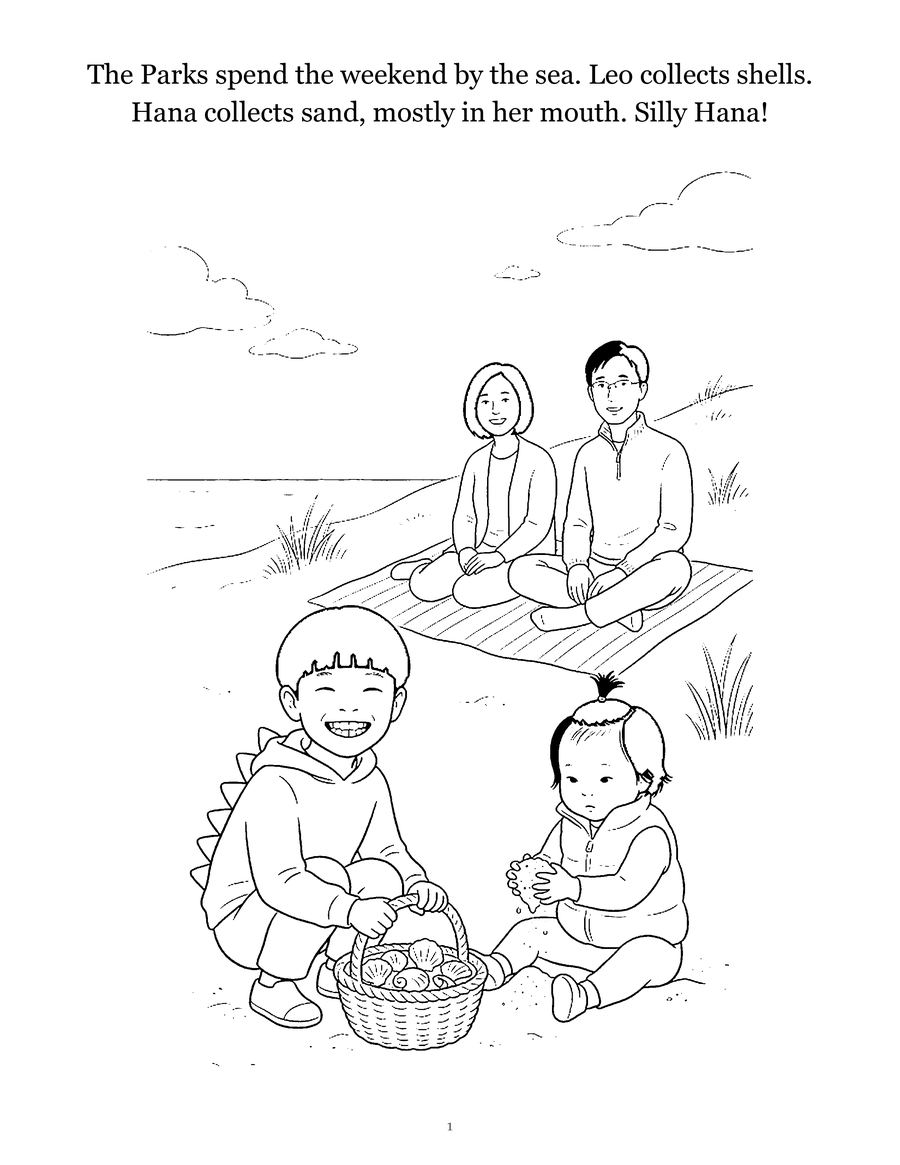
Yes, you can turn a photo into a coloring page for free, and you have two real choices. Run the photo through a free image editor (GIMP on a computer, or Photopea in a browser) and clean up the result, or trace the photo by hand, either on paper over a bright screen or window, or in a free drawing app. Filters are fast but messy. Tracing is slower and almost always looks better, because a coloring page needs a few clear outlines, not every shadow in the photo.
Turning photos into pages for my own kids is how Colorkin started. Here is what works, with the exact menus where I could confirm them in the tools' own manuals.
Start with the right photo
The method matters less than the photo. Pick one that is:
- Sharp, with the face in focus.
- Evenly lit, ideally daylight, no harsh shadow across the face.
- Plain behind: a wall, sky or lawn beats a cluttered living room.
- Close: faces that fill a good part of the frame. A tiny figure in a landscape turns into a smudge.
Crop the photo before you start so only the part you want to color is left. If you plan to make several pages, the guide to making a whole coloring book from photos covers choosing a set that works together.
Method 1: GIMP filters (free, Windows, Mac, Linux)
GIMP is a free, open-source image editor. These steps come from the GIMP 3.0 manual.
- Open your photo, then remove the color with Colors > Desaturate > Desaturate, as described in the GIMP Desaturate page.
- Apply Filters > Artistic > Photocopy. The GIMP manual explains that it darkens pixels darker than their surroundings and turns the rest white. Lower "Percent black" for thinner lines and a larger "Mask radius" for less detail. Less detail is usually what you want.
- Force everything to pure black or white with Colors > Threshold, which the GIMP Threshold page describes as turning pixels inside the range white and the rest black. Drag the slider until faces read clearly and the gray haze disappears.
- Take the eraser to dark blobs (hair, shadows, dark clothing) so there is room to color. Add a few lines with a pencil tool if an outline broke.
- Export as PNG and print.
There is also Filters > Edge-Detect > Edge, which the GIMP Edge page lists with several algorithms. For coloring pages, Photocopy plus Threshold is usually the quicker route to clean outlines.
Method 2: Photopea in a browser (free, nothing to install)
Photopea is a free editor that runs in the browser. Its adjustments and filters guide confirms that adjustments live under Image > Adjustments and filters under the Filter menu, grouped by category, and names Hue/Saturation among the adjustments. The general recipe is the same as in GIMP:
- Open the photo and drain the color (Image > Adjustments > Hue/Saturation, saturation all the way down).
- Look in Image > Adjustments for a threshold or black and white option and in the Filter menu's stylize and sketch groups for an edge or photocopy style effect. The menus are long, so try a couple and compare.
- Clean up dark areas with the eraser and export a PNG.
I am not listing exact filter names for Photopea because its own guide does not, and menus change. The idea that matters: gray first, then push to pure black and white, then erase.
Method 3: Trace on a tablet, phone or window (free, best results)
This is the method I would hand to a grandparent, and the one that gives the friendliest pages. You are the filter. You draw the outline of the head, hair, eyes, smile, clothes and one or two background shapes, and skip the rest.
On a tablet or phone screen:
- Open the photo, zoom so it fills the screen, and turn the brightness all the way up.
- Stop the screen from reacting to your hand. On an iPhone or iPad, Apple's Guided Access instructions show how to start a session and turn off Touch so taps are ignored. Raise or turn off auto-lock too.
- Lay a sheet of thin printer paper on the screen, tape the corners lightly, and trace with a pencil. Press gently. A plastic sheet protector between paper and glass helps.
- Go over the pencil lines with a black marker or fine felt-tip, then erase the pencil.
On a window: print the photo at the size you want, tape it to a sunny window, tape blank paper over it, and trace. A glass baking dish over a flashlight works at night.
Method 4: Trace in a free drawing app
If you would rather end up with a clean digital file you can reprint, use a free drawing app with layers. ibisPaint X is free on iPhone, iPad and Android (with ads and optional upgrades). Its tutorials show the steps: import a photo from your library into a layer, then lower that layer's opacity so the lines you draw over it are easier to see, as the ibisPaint layers lesson describes. Then add a new layer on top and trace with a pen brush. The ibisPaint tracing lesson suggests zooming in for detail and drawing at a steady speed, since slow strokes come out wobbly.
When you are done, hide or delete the photo layer, fill the background white, and save the image.
Which method should you use?
| Method | Time per page | Needs | Result |
|---|---|---|---|
| GIMP filters | 10 to 20 min | A computer | Fast, but shadows need erasing |
| Photopea | 10 to 20 min | Any browser | Same as GIMP, nothing to install |
| Trace on screen or window | 15 to 30 min | Paper, pencil, marker | Cleanest and most kid-friendly |
| Drawing app | 20 to 40 min | Phone or tablet | Clean and reprintable |
Whatever you choose, keep lines thick and spaces big for small kids. A two-year-old needs big shapes to scribble in, while a five-year-old can handle more detail. The guide on when toddlers start coloring has more on matching pages to age.
Printing it so it does not look gray
A good outline can still print as a muddy gray page if the printer is set to photo mode or the file was saved with soft gray edges. Print in black only, use the Threshold step above to get pure black lines, and use slightly heavier paper if you are using markers. The printing guide walks through the settings, and the rest of our make-your-own guides cover paper and supplies.
If you would rather skip the cleanup, Colorkin makes coloring pages and whole storybooks from your photos. They are drafted with AI illustration tools and every page is checked and finished by a person. It is one option. Everything above works with no purchase at all.
Questions parents ask
Can you turn a photo into a coloring page for free?
Yes. A free editor like GIMP or Photopea can turn a photo into black lines in a few minutes, and tracing a photo by hand on a bright tablet screen or a sunny window costs nothing but paper and a pencil.
Which free method gives the cleanest coloring page?
Tracing usually does, because you decide which lines matter. Filters are faster but keep shadows and texture, so expect to erase dark patches by hand before printing.
What kind of photo works best?
A sharp, well-lit photo with a plain background and one or two people facing the camera. Busy backgrounds, dim light and tiny faces turn into a mess of black specks.
Do I need a drawing tablet or stylus to trace?
No. You can trace on paper laid over a phone or tablet screen, or tape the printed photo to a window. A free drawing app also works with a finger, just more slowly.
See your own family on a page, free
Want to see what a finished page looks like before you try it yourself? Send one photo and we will email you a free sample coloring page of your child. No card needed.
Get a free sample pageMore in Make your own
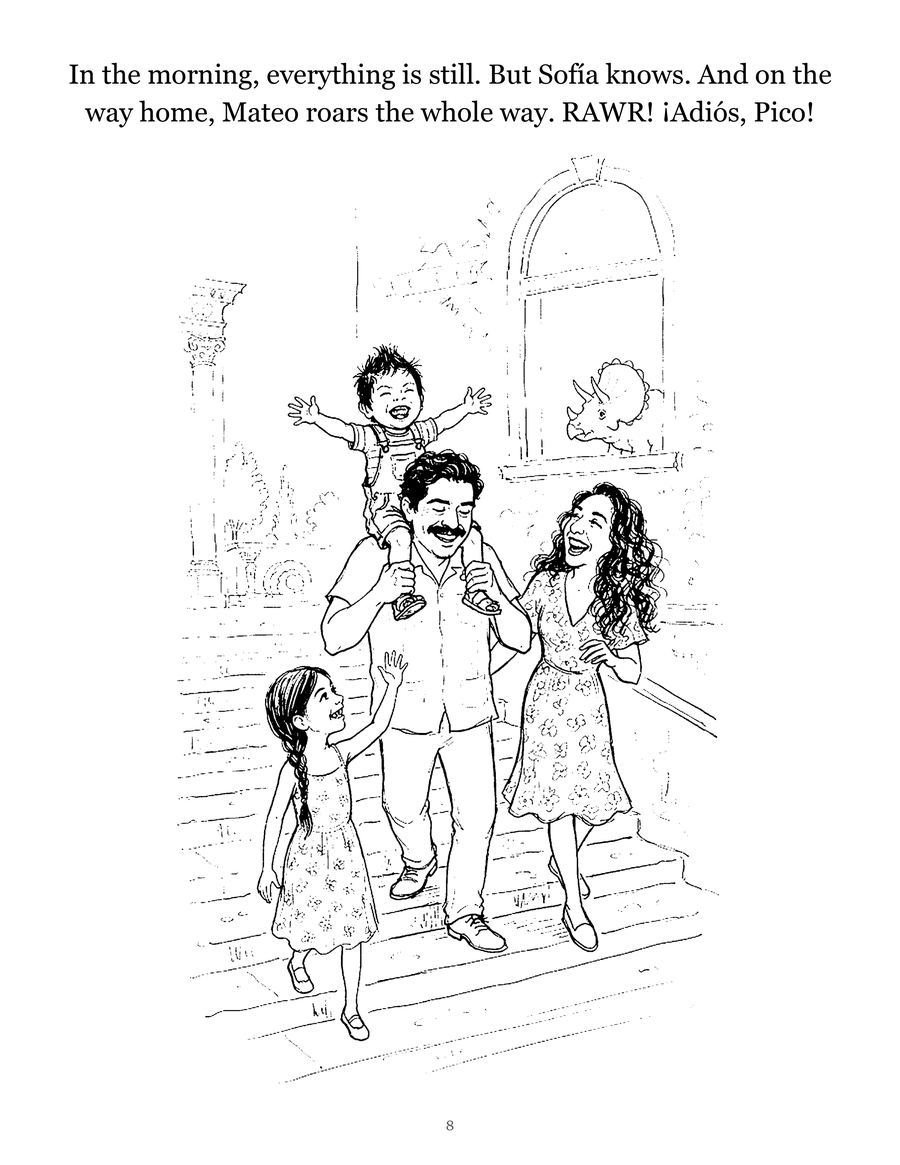
How to write a short story starring your child
A simple 12-page template for writing a picture-book story with your child as the hero, plus tips on plot, length, pictures and reading it together.
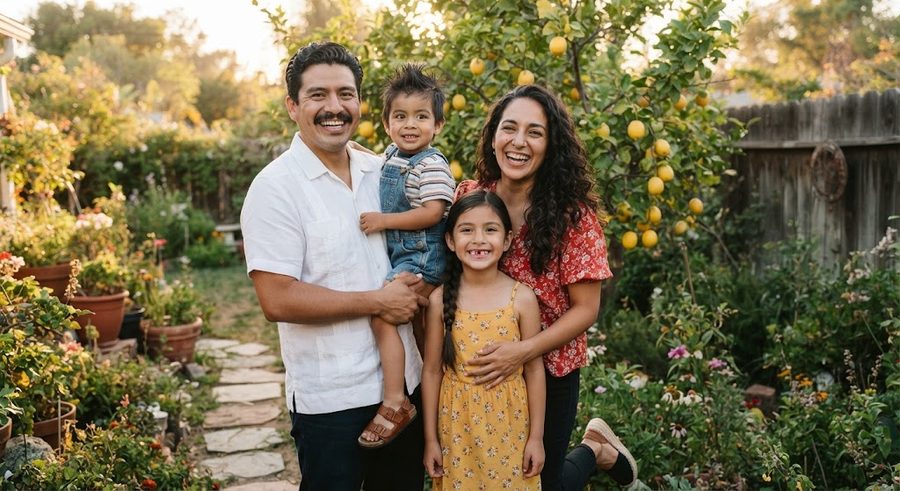
How to turn a photo into a coloring page in Canva
Turn a photo into a coloring page in Canva: trace it with the Draw tool over a faded, locked photo, then download a PDF Print file. Steps from Canva's help.
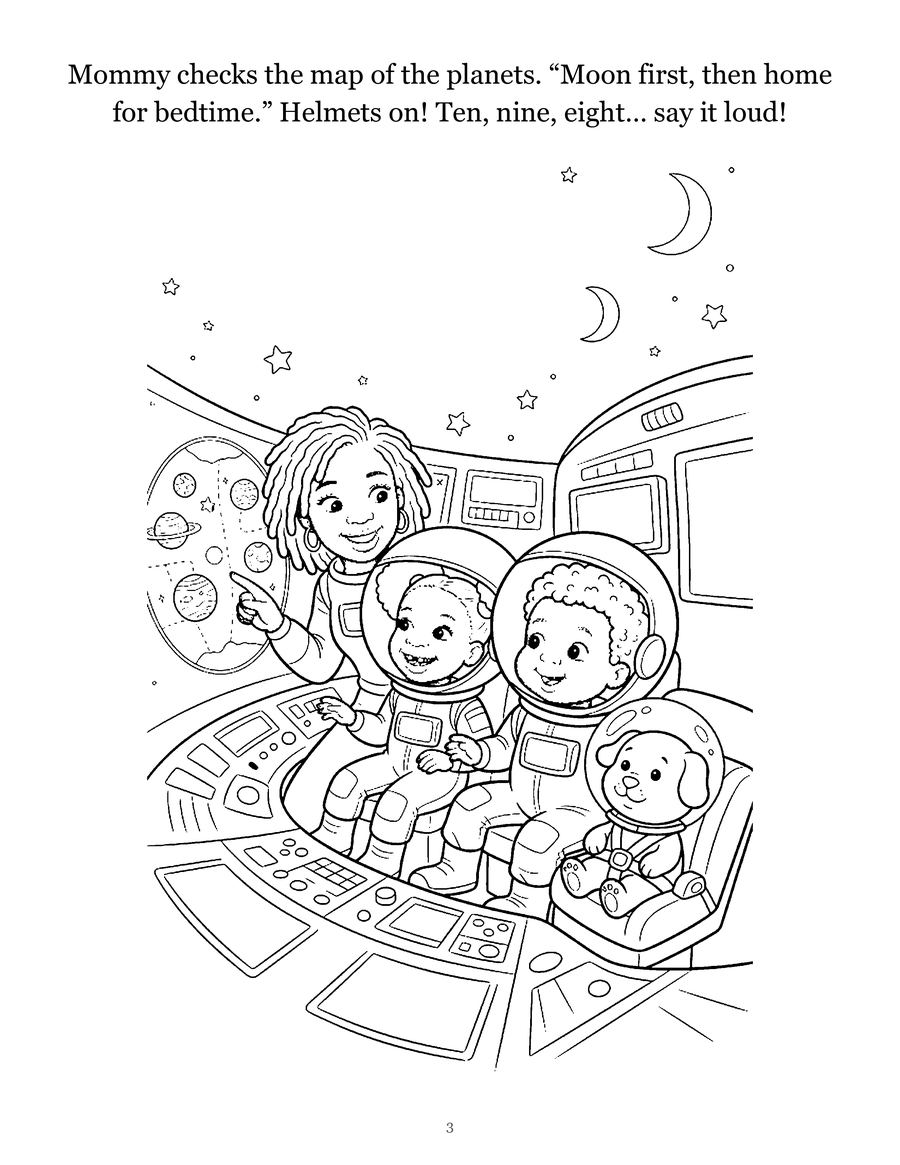
How to print coloring pages that look crisp, not gray
How to print coloring pages at home or from your phone: the print settings that keep lines black, paper that holds up to markers, and fixes for gray pages.