Turn your child's drawing into a coloring page or a book
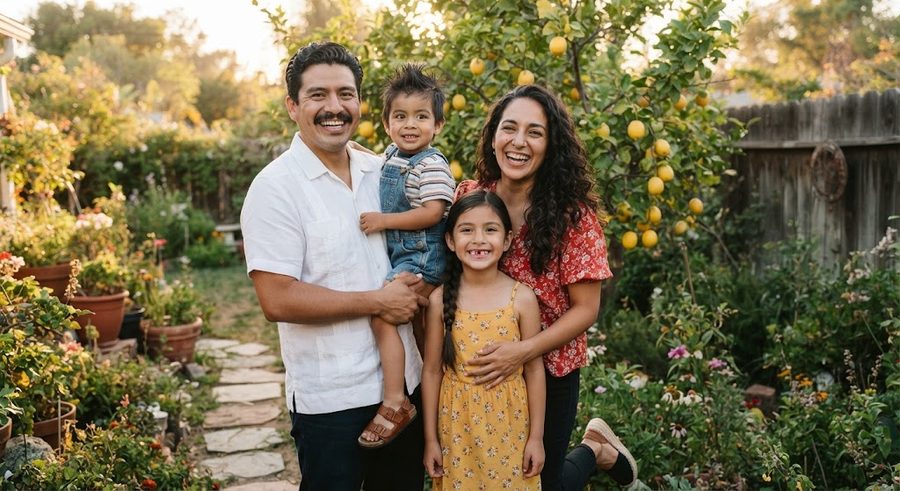
To turn your child's drawing into a coloring page, go over the outlines in black marker, scan it with your phone, then push the scan to pure black and white with a Threshold adjustment in a free editor like GIMP. Paint out smudges, thicken thin lines, and print in black only. To make a book, do that for eight or twelve drawings, add a cover, and print them as one stapled booklet at home or at a copy shop. Everything below works with free tools and a home printer.
The appeal is simple: the page is in your kid's own lines. A younger sibling can color what the older one drew, or the artist can color their own drawing again in a new way.
Step 1: Get a drawing that will scan well
The drawing itself decides most of the result.
- Dark lines on white paper scan best. Thick black marker is ideal. Pencil and yellow or pink crayon tend to fade out when you convert to black and white.
- Ask before you change it. Some kids are fine with you tidying their art. Others are not. Ask, and keep the original either way.
- Go over the lines on a copy, not the original. Photocopy or print the drawing, then trace the main outlines with a black marker (or have your child do it). This also lets you skip scribbled-in areas, which turn into solid black blobs.
- Leave the coloring areas open. If the sky is fully scribbled in blue, outline the clouds and sun and leave the rest blank, so there is something left to color.
Do not worry about what the drawing looks like. A person with a giant head and arms out of the sides is exactly right for a three- or four-year-old; the guide to drawing stages explains why those tadpole people show up.
Step 2: Scan it with your phone
You do not need a scanner.
- iPhone or iPad: open Notes, tap the Attachment button, then Scan Documents, per Apple's scanning guide. Hold the camera over the page; in Auto mode it captures on its own. Drag the corners to fit the page, tap Keep Scan, then Done. The same page shows a Scan Documents option in the Files app too.
- Android (or iPhone): the Google Drive app scans documents to PDF. Google's help page notes that scanning is in the mobile app, not the web version of Drive.
- Flatbed scanner: scan at the highest black and white or grayscale setting it offers.
Tips for a clean scan: lay the drawing flat on a dark table so the edges are easy to find, shoot in daylight without your shadow over it, and keep the phone parallel to the paper. Save the scan as an image or PDF and move it to your computer.
Step 3: Make it pure black and white
A scan of white paper is never truly white. It is gray, slightly yellow, with paper texture. Printed as is, it comes out muddy. You fix that with Threshold.
In GIMP (free):
- Open the scan. Choose Colors > Desaturate > Desaturate to remove color, per GIMP's Desaturate page.
- Choose Colors > Threshold. Drag the range on the histogram until the lines are solid black and the paper is clean white. GIMP's Threshold page says the filter turns the layer into a black and white image and mentions enhancing scanned text as a use, which is close to what you are doing.
- If the edges look jagged, the same page notes Threshold removes anti-aliasing and suggests the Levels tool instead. Undo, then choose Colors > Levels (per GIMP's Levels page) and drag the black and white input sliders toward the middle until the paper turns white and the lines go dark.
In Photoshop: choose Layer > New Adjustment Layer > Threshold and drag the slider under the histogram. Adobe's Threshold section explains that pixels lighter than the threshold become white and darker ones become black.
Where to set the slider: slide toward lighter until pale lines appear, then back off as soon as paper texture starts showing up as specks. If one colored line keeps disappearing, trace it in black on your copy and rescan, rather than fighting the slider.
Step 4: Clean up and thicken the lines
With a white brush, paint out specks, fold lines and the edge of the paper. With a black brush, close small gaps in outlines so a crayon has a clear shape to fill, and go over very thin lines to make them bolder. Thin lines disappear under toddler coloring.
Resist the urge to "fix" the drawing. Straightening a wobbly house or adding fingers takes away the thing that makes it theirs. Clean up the scan, not the art.
Then fit the drawing to a letter-size or A4 page with a half-inch margin, and print a test copy in black only. The printing guide covers the settings that keep lines black.
Step 5: Turn a stack of drawings into a book
Once you have a few pages, a book is a short step.
- Pick 8, 12 or 16 drawings. For a stapled booklet, pages come in multiples of four. Staples' booklet page, for example, says blank pages are added before the back cover if the count is not a multiple of four.
- Add a cover. The artist's name, a title they choose, and their favorite drawing.
- Add a line of text per page if you like. Dictated by your child: "This is our cat. She is asleep." If you want to turn the pages into a simple story, the short story guide helps.
- Save as one PDF with pages in reading order.
- Print and bind. At home, the print and bind guide covers folding, stapling and ring binding. At a copy shop, see the print shop guide for file setup and what to ask. For a paperback, Lulu has a coloring book printing page that takes your own files and prints single copies.
Print two copies: one to color, one to keep clean.
If you would like a book where your child appears as the hero rather than as the artist, Colorkin makes coloring storybooks from family photos, drafted with AI illustration tools and checked and finished by a person. It works from photos, not drawings, so the two make a good pair. More guides are under make your own.
Questions parents ask
How do I turn my child's drawing into a coloring page?
Have the outlines gone over in black marker, scan the drawing with your phone, then in a free editor like GIMP choose Colors > Desaturate > Desaturate and Colors > Threshold, and drag until the lines are black and the paper is white. Paint out smudges, thicken thin lines, and print in black only.
Can I turn a crayon or pencil drawing into a coloring page?
Yes, but light pencil and pale crayon can drop out when you push the image to black and white. Trace over the important lines with a black marker on a photocopy, or adjust the Threshold slider and try GIMP's Levels tool for softer edges.
How do I make a book out of my kid's drawings?
Scan each drawing as its own page, clean them up, add a cover and a short line of text per page, and save everything as one PDF. Print and staple it at home, take it to a copy shop as a saddle-stitched booklet, or upload it to a print-on-demand service.
What app scans drawings best?
The scanner already on your phone is enough. On iPhone or iPad, the Notes app has Scan Documents. On Android or iPhone, the Google Drive app can scan to PDF. A flatbed scanner works too.
See your own family on a page, free
Want a page that stars your child, not just their art? Send one photo and we will email you a free sample coloring page, checked by a person. No card needed.
Get a free sample page- Apple Support: How to scan documents on your iPhone or iPad
- Google Drive Help: Scan documents with Google Drive
- GIMP 3.0 documentation: Desaturate
- GIMP 3.0 documentation: Threshold
- GIMP 3.0 documentation: Levels
- Adobe Photoshop User Guide: Apply special color effects to images (Threshold)
- Staples: Booklet Printing (file preparation)
- Lulu: Coloring book printing
More in Make your own

Turn a photo into a coloring page for free: 4 methods that work
Four free ways to turn a photo into a coloring page: GIMP filters, the Photopea browser editor, tracing on a tablet or window, and a free drawing app.
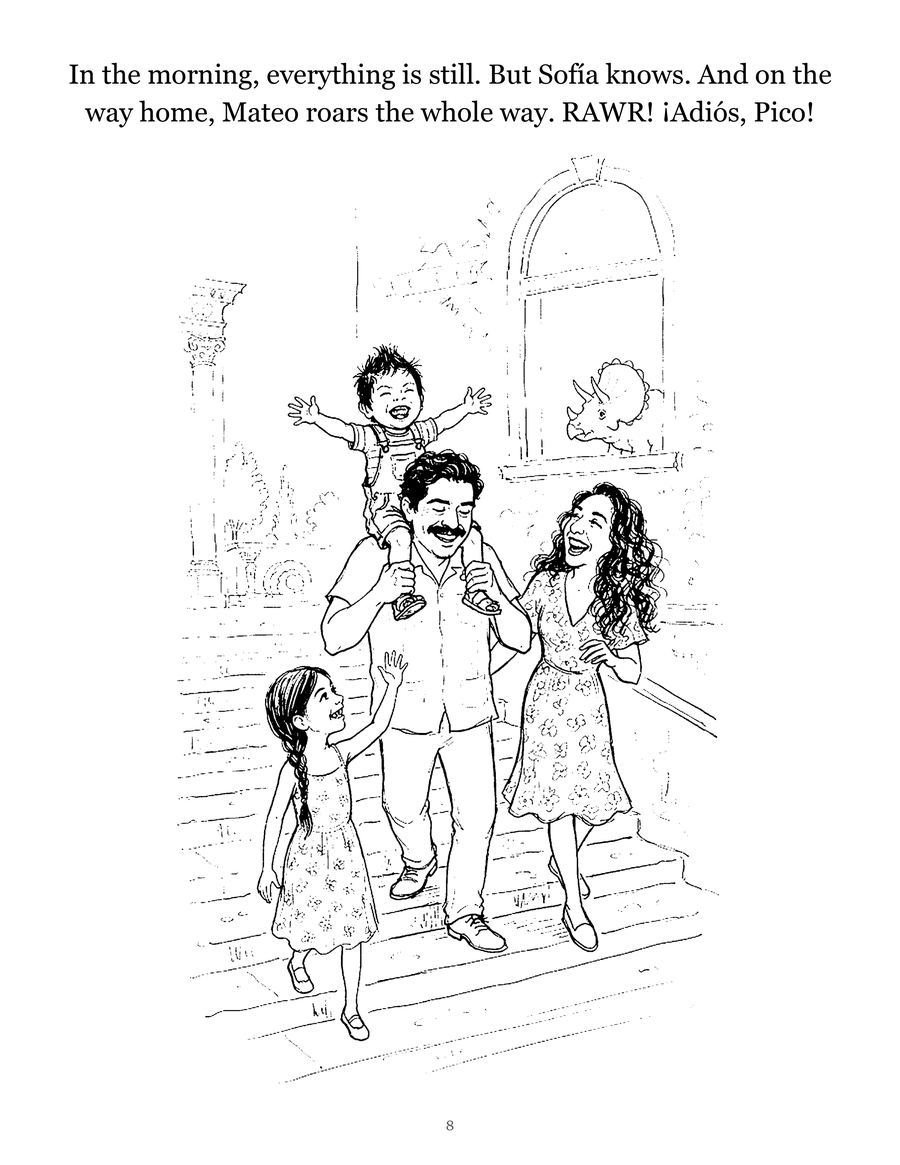
How to write a short story starring your child
A simple 12-page template for writing a picture-book story with your child as the hero, plus tips on plot, length, pictures and reading it together.
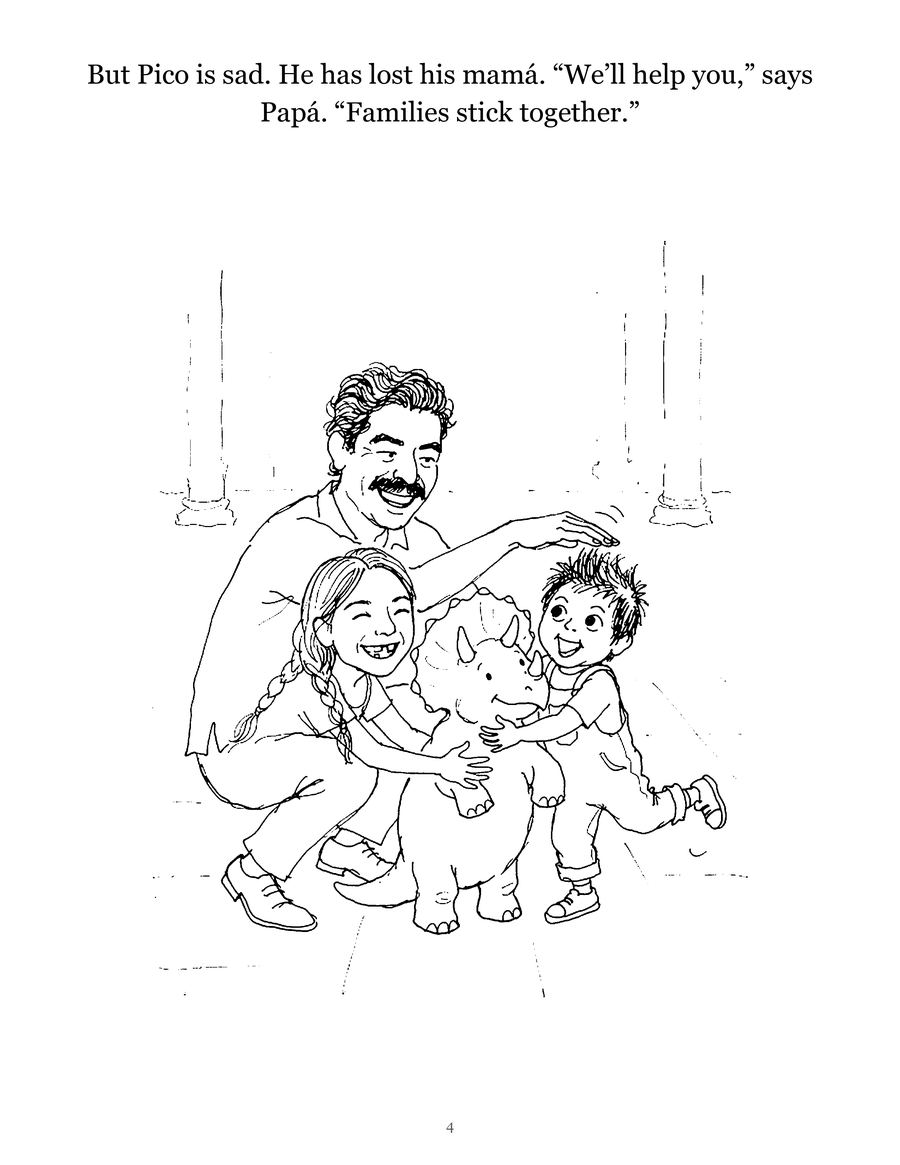
How to turn a photo into a coloring page in Procreate
Turn a photo into a coloring page in Procreate by tracing: insert the photo, lower its opacity, lock it, ink on a new layer, then export a PDF.