How to turn a photo into a coloring page in Procreate
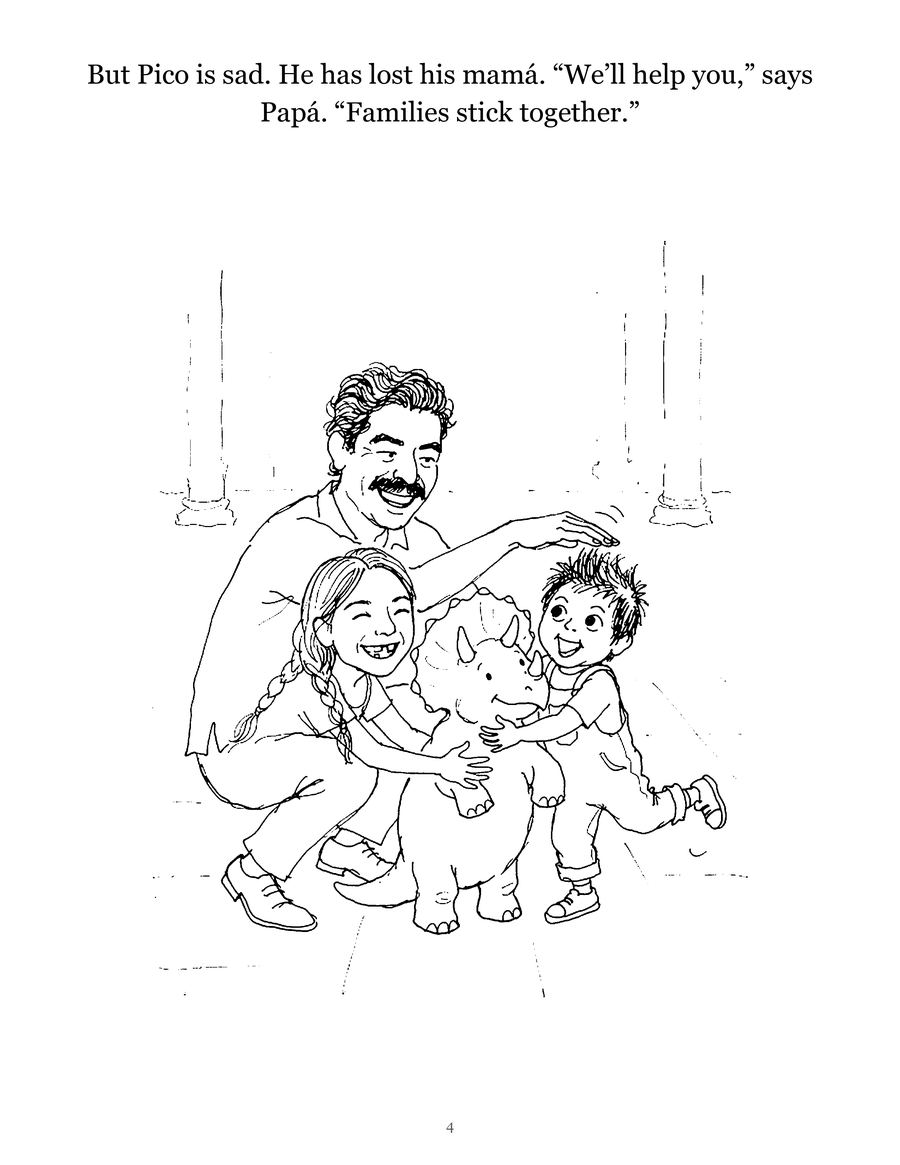
Procreate does not have a button that turns a photo into a coloring page, but it is one of the best apps for tracing one. Make a canvas at your paper size, insert the photo, lower that layer's opacity and lock it, then add a new layer and trace the outlines with a thick black inking brush. Hide the photo and export a PDF. Every step below is confirmed in the Procreate Handbook, and the whole thing takes 30 to 60 minutes a page with an Apple Pencil.
Step 1: Make a canvas the size of your paper
From the Gallery, tap the + at the top right. Procreate offers preset sizes, but a coloring page should match the paper you print on, so make a custom one. The Handbook's canvas page explains that you tap the rectangle icon with a + in the New Canvas menu, then set Width, Height and DPI.
- Size: 8.5 x 11 inches in the US, A4 elsewhere. You can switch units on the keypad.
- DPI: 300 is a common print target. The Handbook notes that larger canvases allow fewer layers. A single coloring page needs only a few.
- Color profile: the same page says RGB suits screens and CMYK suits artwork destined for print. For black lines on white, either works. If you plan to send a book to a print shop, CMYK saves a conversion later.
Step 2: Insert the photo, fade it and lock it
- Insert. Tap Actions > Add > Insert a photo and pick it from your Photos app, per the Handbook's Add page. Size it to fill most of the page, leaving a margin so the printer does not clip the edges.
- Lower the opacity. Open the Layers panel and tap the letter on the right side of the photo layer (usually N, for Normal). That opens the Blend Mode menu, which has an Opacity slider. The Handbook's blend page says to move it left to make the layer more transparent. Faint enough that black lines stand out, strong enough that you can see the eyes.
- Lock it. Swipe right to left on the photo layer and tap Lock. The Handbook's organize page says a padlock appears next to the layer name and the layer is protected from accidental edits. This matters: without it, one stray stroke lands on the photo instead of your drawing layer.
Pick a good photo before any of this: sharp, well lit, faces large, plain background. The free photo-to-coloring-page guide covers photo choice in more detail.
Step 3: Add a drawing layer and set up your brush
Press the + at the top right of the Layers panel. The Handbook's create layers page says the new layer appears above the active layer, so it sits on top of the photo. Make sure this new layer is selected (highlighted blue) before you draw.
Choose an inking brush and black. Then two settings make tracing easier:
- StreamLine. In Brush Studio, StreamLine smooths out wobbles and shakes in a line. The Handbook's Brush Studio page says it is particularly important for inking. Turning the Amount up gives smoother, more even lines, which is exactly the look of a printed coloring book.
- QuickShape. Draw a circle, line or rectangle and keep holding at the end of the stroke. The QuickShape page shows it snapping to a clean shape, and placing a second finger turns an oval into a circle. Handy for buttons, a sun, balloons or wheels.
Set the brush size large. Thin lines disappear under a toddler's crayon, and bold lines also hide small wobbles.
Step 4: Trace only what a child needs
Trace in this order, and stop sooner than feels natural:
- Outline of the head and hair. Outline dark hair, do not fill it.
- Eyes, eyebrows, nose and smile. Keep them simple; a curve for each eye reads better than every eyelash.
- Body and clothing outlines, plus one big detail such as a pocket or a stripe.
- One or two background shapes: a tree, a door, a dog. Leave the rest of the background blank.
If a photo has a lot of people, put each person on a separate layer. If one goes badly, you can clear just that layer.
Step 5: Check your lines with ColorDrop
Here is a trick from Procreate's layer options that tells you whether shapes are closed. Tap your line layer, then tap Reference in Layer Options. The Handbook's Layer Options page explains that ColorDrop on another layer will then fill as if flowing into the linework on the Reference layer. Add a test layer, drag color into each shape, and if a fill spills into the background, there is a gap to close. Delete the test layer when you are done.
Step 6: Hide the photo and export
Tap the Visibility checkbox on the photo layer to hide it, per the Layers interface page. Look at the lines alone on white, and fix what needs fixing.
Then tap Actions > Share > PDF and choose Good, Better or Best quality. The Handbook's Share page calls PDF the most practical choice for sending files to print houses and publishers. Print at actual size in black only; the printing guide has the settings that keep the lines dark.
Drawing from a photo instead of tracing
If you would rather draw your own version than trace, use the Reference Companion. Tap Actions > Canvas > Reference to open a floating window, then tap Image to load a photo into it, as the Handbook's Canvas page describes. You can pinch to zoom inside that window while drawing on a clean canvas. The result looks more like a drawing and less like a tracing, which some families prefer.
Making a whole coloring book in one file
Procreate can export layers as pages. Under the Share Layers section of the Share menu, choose PDF. The Handbook's layer sharing page says each layer becomes a page, with the bottom layer as the first page, and only visible layers export. So put each finished page on its own layer, hide every photo layer, and export once. Then see the guide to printing and binding at home or the print shop guide.
Not on an iPad? The Canva guide and the Photoshop and GIMP guide use the same faint photo, black lines idea. And if you want the pages without the tracing, Colorkin makes coloring storybooks from family photos, drafted with AI illustration tools and checked and finished by a person. More guides are under make your own.
Questions parents ask
Can Procreate turn a photo into line art automatically?
The Procreate Handbook does not describe a one-tap photo to line art feature. The reliable method is tracing: insert the photo, lower its layer opacity, lock it, and draw over it on a new layer with an inking brush.
What canvas size should I use for a printable coloring page?
Make a custom canvas at your paper size, such as 8.5 x 11 inches, and set the DPI. 300 DPI is a common print target. The Handbook notes that larger canvases allow fewer layers, which is rarely a problem for a coloring page.
How do I export a Procreate coloring page for printing?
Hide or delete the photo layer, then tap Actions, Share, PDF and choose Good, Better or Best quality. The Handbook calls PDF the most practical choice for sending files to print houses.
Can I make a whole coloring book in one Procreate file?
Yes. Procreate can export each visible layer as a page of one PDF, with the bottom layer as page one. Put each finished page on its own layer and hide the photo layers before exporting.
See your own family on a page, free
No iPad, or no evenings to spare? Send one photo and we will email you a free sample coloring page of your child, checked by a person. No card needed.
Get a free sample page- Procreate Handbook: Create (canvas size and DPI)
- Procreate Handbook: Add (insert a photo)
- Procreate Handbook: Blend Modes and opacity
- Procreate Handbook: Organize layers (lock, duplicate, delete)
- Procreate Handbook: Create layers
- Procreate Handbook: Layers interface (visibility)
- Procreate Handbook: Layer Options (Reference)
- Procreate Handbook: Brush Studio settings (StreamLine)
- Procreate Handbook: QuickShape
- Procreate Handbook: Canvas (Reference Companion)
- Procreate Handbook: Share (PDF export)
- Procreate Handbook: Share layers (multi-page PDF)
More in Make your own
Turn your child's drawing into a coloring page or a book
Turn a child's drawing into a coloring page: scan it, push it to pure black and white with Threshold, thicken lines, then print or bind a book.
Turn a photo into a coloring page for free: 4 methods that work
Four free ways to turn a photo into a coloring page: GIMP filters, the Photopea browser editor, tracing on a tablet or window, and a free drawing app.
How to write a short story starring your child
A simple 12-page template for writing a picture-book story with your child as the hero, plus tips on plot, length, pictures and reading it together.