How to turn a photo into a coloring page in Photoshop

You can turn a photo into a coloring page in Photoshop two ways. The quick way uses filters: desaturate the photo, run Filter > Stylize > Find Edges, then add a Threshold adjustment layer to push every pixel to pure black or white. The better way is tracing: lower the photo's opacity, add a new layer on top, and draw the outlines with the Brush or Pencil tool. Either way, save it as a Photoshop PDF and print in black only. Every menu path below comes from Adobe's own Photoshop help pages, and there is a short free GIMP version at the end.
Adobe moves things between versions, so if a menu is not where this says, search Photoshop's help panel for the command name. The commands themselves have been stable for years.
Set up the file first
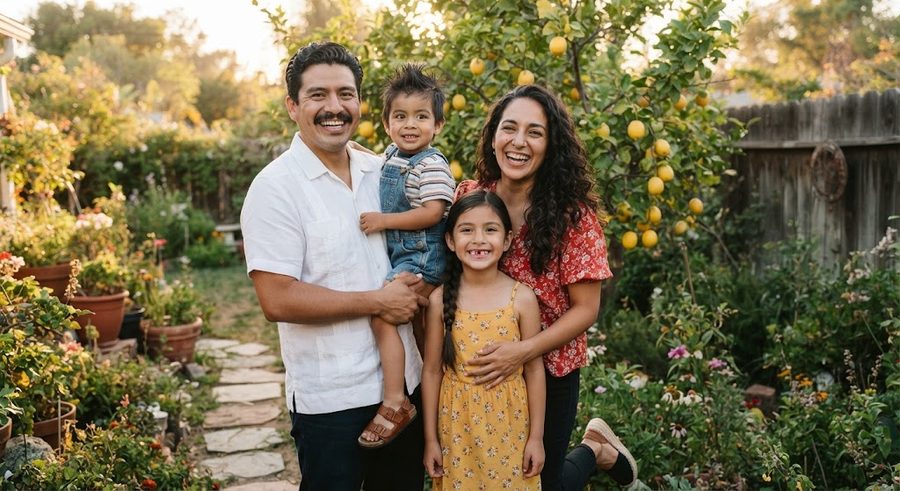
- Pick the right photo. Sharp, well lit, one to three people, faces big in the frame, a plain background. Busy backgrounds turn into scribble with filters. The free photo-to-coloring-page guide has more on choosing photos.
- Save a copy. Some of these commands change the pixels for good, so work on a duplicate file and keep the original.
- Size it for paper. Choose Image > Image Size, which Adobe's image size page shows has fields for dimensions, resolution and resampling. Aim for 8.5 x 11 inches (or A4). For resolution, Lulu's PDF guidelines ask for 300 ppi images, which is a sensible target even for a home printer.
Method 1: filters (about ten minutes)
This is the fast route. It works best on simple, evenly lit photos.
- Remove the color. Choose Image > Adjustments > Desaturate. Adobe's color effects page notes that Desaturate permanently alters the original image information on that layer, which is why you saved a copy.
- Find the edges. Choose Filter > Stylize > Find Edges. Adobe's filter reference describes Find Edges as outlining the edges of an image with dark lines against a white background, which is close to what a coloring page needs.
- Make it pure black and white. Choose Layer > New Adjustment Layer > Threshold and click OK. In the Properties panel, drag the slider under the histogram. Adobe's Threshold section explains that pixels lighter than the threshold turn white and darker ones turn black. Slide until faces read clearly and the background goes mostly white.
- Clean up. Set the foreground color to white, pick the Brush tool and paint out stray specks and background texture. Then switch to black and close any gaps in the outlines, so small hands get shapes they can fill.
An alternative to step 2 is the Photocopy filter. Adobe's reference lists it under the Sketch filters, which are applied through the Filter Gallery, and says large dark areas tend to be copied only around their edges. Try both and keep the one that looks less busy.
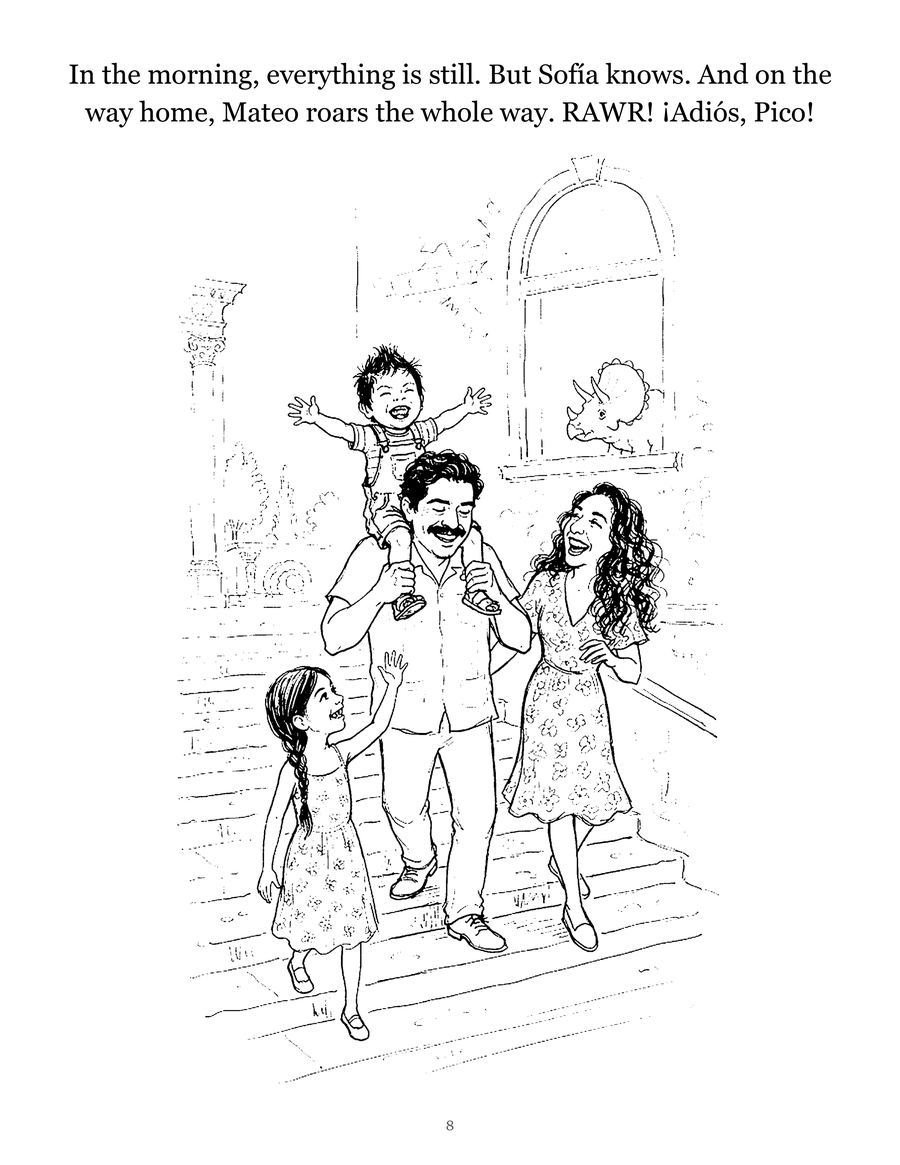
What to expect: filters outline everything, including every strand of hair, the pattern on a shirt and shadows under the chin. For a toddler that is too much detail. You will spend most of your time painting things out, which is the case for method 2.
Method 2: trace on a new layer (30 to 60 minutes, much cleaner)
Tracing is how most good photo coloring pages get made, because you decide which lines matter.
- Fade the photo. In the Layers panel, select the photo layer and lower its Opacity, as Adobe's opacity page describes. A third of full strength or so is usually faint enough. The same page notes you cannot change the opacity of a Background layer or a locked layer, so if the slider is grayed out, convert the Background to a regular layer first.
- Add a drawing layer. Choose Layer > New > Layer, or click the Create A New Layer button in the Layers panel. Adobe's layers page shows both. The new layer appears above the selected one, which is where you want it.
- Pick a pen. Set the foreground color to black and select the Brush tool or the Pencil tool. Adobe's painting tools page says the Brush creates soft strokes and the Pencil creates hard-edged lines. For coloring pages, hard edges print crisper. Choose a brush and set its size in the options bar.
- Trace, simply. Head outline and hair outline (do not fill dark hair), eyes, brows, nose, smile, the body and clothes, one or two big background shapes. Skip texture. With a mouse it helps to zoom in and use short strokes; a drawing tablet makes it much faster.
- Hide the photo. Drag the photo layer's Opacity slider all the way down, then look at your lines on white. Fix gaps and wobbles.
Line weight matters more than people expect. Thin lines vanish under a toddler's crayon. Go thicker than feels right, then a little thicker.
Save and print
Choose File > Save As and pick Photoshop PDF from the Format menu. In the Save Adobe PDF dialog, Adobe's PDF page explains that you choose a preset for where the file is going, such as a desktop printer or a commercial printer, then select Save PDF. For home printing, a desktop printing preset is fine.
Then print in black or grayscale only. The printing guide covers the printer settings that keep lines black instead of muddy gray, and the print shop guide covers what to send a shop if you make a whole book.
Which method should you use?
| Filters | Tracing | |
|---|---|---|
| Time per page | About 10 minutes | 30 to 60 minutes |
| Best photo | Plain background, soft light | Almost any clear photo |
| Result | Busy, needs cleanup | Clean, toddler friendly |
| Skill needed | Low | Patience more than talent |
A good compromise: run the filters first, lower that layer's opacity, and trace over the filtered version on a new layer. The filter shows you where the edges are, and you keep only the ones worth coloring.
The free GIMP version
If you do not have Photoshop, GIMP is free and has the same building blocks:
- Remove color: Colors > Desaturate > Desaturate, per GIMP's Desaturate page.
- Make lines: Filters > Artistic > Photocopy, per GIMP's Photocopy page, which darkens areas darker than their neighborhood and sets other pixels to white.
- Pure black and white: Colors > Threshold. GIMP's Threshold page notes that it removes anti-aliasing, so edges can look jagged up close, and suggests the Levels tool if that bothers you.
The free method guide walks through GIMP step by step, and the Procreate guide covers tracing on an iPad. If you would rather compare apps that try to do this automatically, see the app comparison.
If you want the result without the evening, Colorkin makes coloring storybooks from family photos: pages are drafted with AI illustration tools and every one is checked and finished by a person. More how-to guides live under make your own.
Questions parents ask
What is the fastest way to make a coloring page in Photoshop?
Choose Image > Adjustments > Desaturate, then Filter > Stylize > Find Edges, then add a Threshold adjustment layer (Layer > New Adjustment Layer > Threshold) and drag the slider until the lines are black and the background is white. Clean up stray specks with a white brush.
Why does my Photoshop coloring page look messy?
Find Edges outlines every change in the photo, including hair texture, shadows and background clutter. Pick a photo with a plain background and soft light, or trace the important lines by hand on a new layer instead. Tracing takes longer and looks much cleaner.
Can I do this without Photoshop?
Yes. GIMP is free and has the same building blocks: Colors > Desaturate > Desaturate, Filters > Artistic > Photocopy, and Colors > Threshold. Tracing works in any app with layers.
What size should the file be for printing?
Set the page to the paper you print on, usually 8.5 x 11 inches in the US, using Image > Image Size. Print shops such as Lulu ask for images at 300 ppi, which is a safe target for home printing too.
See your own family on a page, free
Rather not spend an evening in Photoshop? Send one photo and we will email you a free sample coloring page of your child, checked by a person. No card needed.
Get a free sample page- Adobe Photoshop User Guide: Filter effects reference
- Adobe Photoshop User Guide: Apply special color effects to images (Threshold, Desaturate)
- Adobe Photoshop User Guide: Layer opacity and blending
- Adobe Photoshop User Guide: Create layers and groups
- Adobe Photoshop User Guide: Painting tools
- Adobe Photoshop User Guide: Image size and resolution
- Adobe Photoshop User Guide: Save PDF files
- Lulu Knowledge Base: PDF Creation Settings
- GIMP 3.0 documentation: Threshold
- GIMP 3.0 documentation: Photocopy filter
- GIMP 3.0 documentation: Desaturate
More in Make your own
Turn your child's drawing into a coloring page or a book
Turn a child's drawing into a coloring page: scan it, push it to pure black and white with Threshold, thicken lines, then print or bind a book.

Turn a photo into a coloring page for free: 4 methods that work
Four free ways to turn a photo into a coloring page: GIMP filters, the Photopea browser editor, tracing on a tablet or window, and a free drawing app.
How to write a short story starring your child
A simple 12-page template for writing a picture-book story with your child as the hero, plus tips on plot, length, pictures and reading it together.